Applicable to
Faculty and staff with university Mac computers
What is FileVault?
FileVault is a service for macOS that encrypts the information on the computer hard drive and prevents unauthorized access to files. This also insures that your information is not accessed if the computer is lost or stolen. During the setup of the JAMF Connect logon process, LTS enables the computer to begin encrypting the drive on the next logon. This encryption happens in the background and will continue to encrypt information on the fly so that you do not need to manage the process.
NOTE: Please note that while FileVault provides excellent protection for your data, it can complicate data recovery should you ever run into significant problems with your computer. Having a secure backup of your data is always a best practice to mitigate unforeseen problems. If you need any assistance setting up a backup process either through the macOS utility Time Machine or using cloud based services such as OneDrive, please submit a Backup/Restore ticket.
How to Enable Additional Accounts for FileVault Encryption
- Start by having the user for an account present to provide the necessary credentials for the account.
- Open the Self Service application located in the Applications folder

-
Sign into Self Service with UWEC credentials.
-
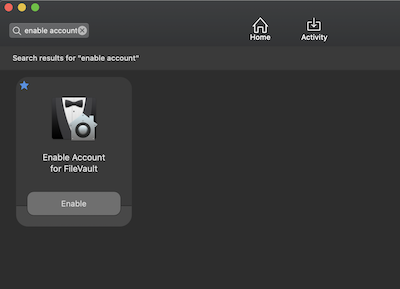
Search for Enable Account and find the item Enable Account for FileVault, click Enable.
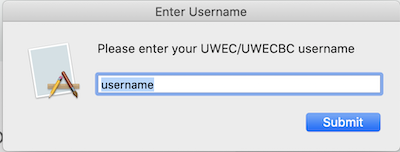
- You will be prompted for your UWEC username. Please enter just the username for the account that needs to be enabled, without the @uwec.edu.
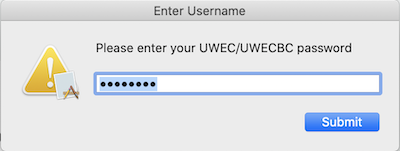
- You will then be prompted for the password that corresponds to the UWEC account entered above for this computer.
- Once the Self Service policy finishes, the account should be enabled. You can repeat this process for each account on the computer that needs to be enabled.
Required Information to Submit a FileVault Ticket
Please include the following information in your FileVault ticket:
- The asset tag on your computer (7-digit number on a Property of UWEC sticker)
- A description of the issue you are having with FileVault
Relevant KB Articles
FileVault Encryption Overview: https://www.uwec.edu/kb/article/macos-offices-logon/